Mix feedback for clients, on one shared report
For producers and mix engineers working on other people's music. Each client's song gets one report, the notes sit on the exact spot they're about, and each new version is checked against the last round's action items. Your clients read and reply for free.
Try it on a client's track →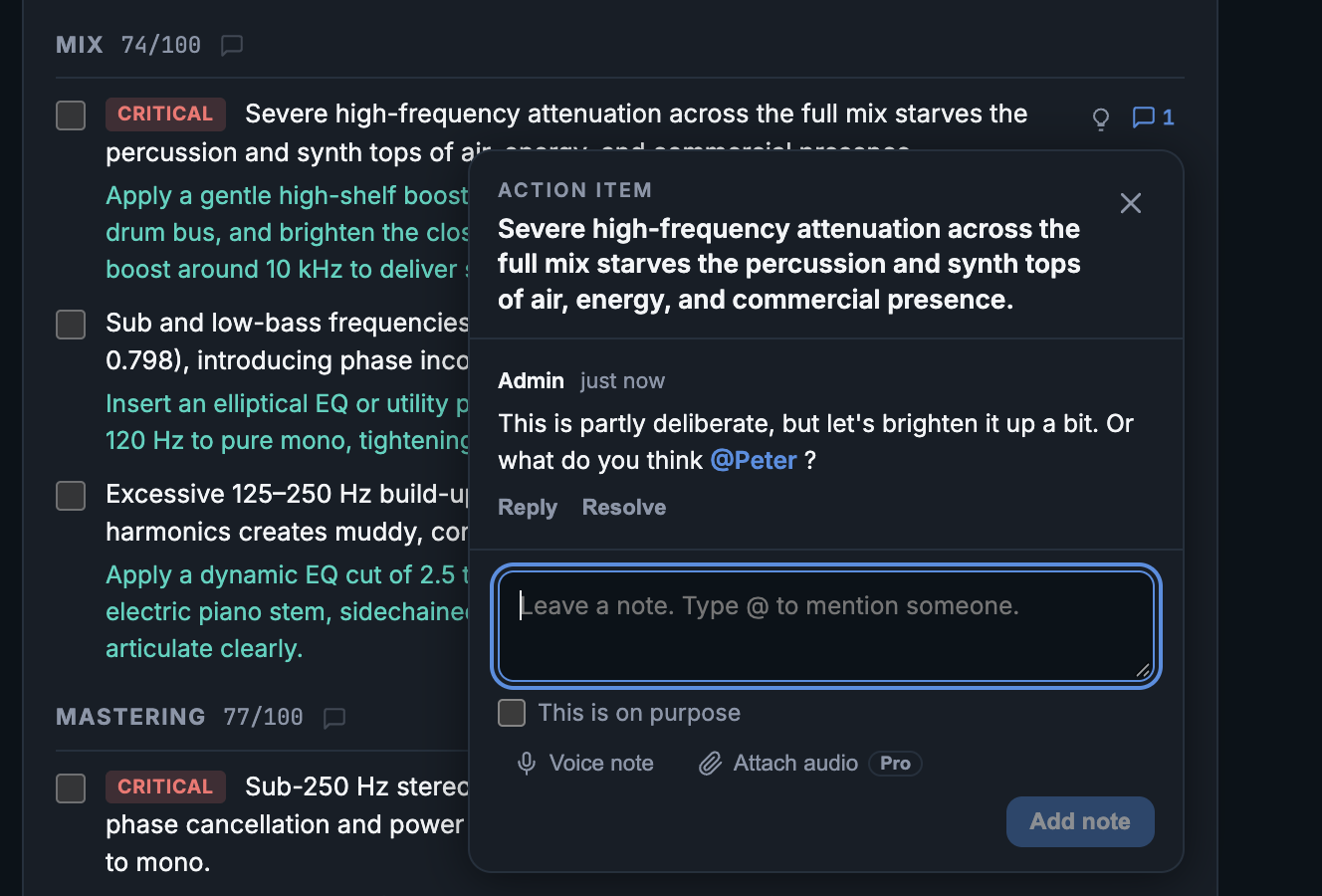
A note pinned to one action item in the Mix lens, with an @mention, ready for a reply.
Several artists, several versions, notes everywhere
When you mix for other people, the mixing is rarely what slows the job down. It's the revisions. Three clients each have a song on mix 3 or 4, the notes arrive as voice memos, texts and emails, and half of them are about a version that isn't current any more. "The vocal's still buried" could mean the second chorus on mix 4, or something you fixed two rounds ago.
TuneLens gives each song one place for that. You upload the mix and get a report on it: songwriting, production, mix and mastering, each scored from 0 to 100 with the reasoning, measured loudness and true peak, and a ranked list of action items. Share the song and your client sees the same report, the same numbers and the same audio. The notes go on the report itself, so they point at something you can both find.
It isn't where you send stems or run a live session. Tools for that already exist. It's what you both have open when you're working out what the next mix needs.
How a client job runs
-
Upload the client's mix
Upload a song with its title and the artist's name. Each song in the Songs list shows the artist under its title, so five clients' songs don't blur into one list. If a client sends a whole folder, Upload multiple songs takes them in one go (more on that below).
-
Share the song with your client
Press Share in the song bar and type their email address, or tick several songs in the Songs list and share them in one invite. They get an email, sign up with that address, accept, and the songs appear under Songs, in Shared with me. You'll find everything you've shared under Shared by me.
-
Leave notes where they belong
A note can sit on an action item, a score, a lens panel, a loudness reading, a section of the song, or a moment in the track. Click the strip under the waveform at 2:14 and the note sits at 2:14, and clicking it later takes the player back there. Type @ to mention someone the song is shared with. They reply under the note, and either of you resolves it when it's dealt with. A voice note works too, if typing it out is more than the point deserves.
-
Run the next version against the last one
When mix 5 is ready, upload it with Analyze new version. It's judged against last round's open action items, and each one comes back marked Addressed or Still needs work. The Version comparison shows which scores moved and why. Open notes carry over to the new version, dated, until somebody resolves them.
What your client can do, and what it costs them
Sharing a song needs a Pro plan. The person you share it with can be on the free plan. In other words, your client doesn't pay anything to read your report and work through the notes with you.
| On a shared song | You (Pro, the song's owner) | Your client (any plan, free included) |
|---|---|---|
| Read the report and play the audio | Yes | Yes |
| Leave notes, reply, @mention, resolve | Yes | Yes |
| Mark an action item "This is on purpose" | Yes | Yes |
| Voice notes | Yes | Yes |
| Attach an audio file to a note | Yes | Only on Pro |
| Upload a new version | Yes, on your credits | Yes, on their own credits. It lands in your song |
| Share the song, delete it, use the chat | Yes | No |
It works the other way round too. If the artist has Pro and shares their song with you, you're the collaborator and you don't pay. A free account starts with 6 credits, so a collaborator who wants to upload the next mix themselves has room for a few versions before thinking about a plan.
When the mix is right and the report disagrees
A report doesn't know what you meant. It will flag a narrow stereo image or a quiet verse vocal the same way whether it's an accident or the whole idea. On client work that matters, because a flag can reopen a decision you and the artist already made together.
Open the note marker on that action item and tick "This is on purpose". The item is dimmed rather than crossed out, and the next time you run Analyze new version, the analysis is told it was left that way on purpose. Add a line on why, and whoever reads it later doesn't have to ask.
One more thing worth knowing before you show scores to a client: a score can move a point or two between two runs of the same audio. The Version comparison marks those moves as noise rather than a real change, so a one-point dip isn't something to explain away.
When a client sends the whole EP
Upload multiple songs in the side nav takes up to 25 files at once. Each row gets its own title, artist and genre, so a batch can hold songs for different artists. You pick the goal (release, sync or demo) and the depth once for the whole batch. The credits are checked before anything starts, the songs run in the background, and an email tells you when the batch is ready.
Each song in a batch is analyzed on its own, exactly as if you'd uploaded it separately. The batch doesn't compare the songs with each other, so it won't tell you whether the EP hangs together. It saves you uploading them one by one. After that, each song is shared and revised like any other.
Keeping track of who's waiting on what
The Notes button on each song has every note across all its versions in one list. You can narrow it to what's open, what mentions you, what's new since you last looked, or a version, an author or an area. Click a note and you're at the spot it's about.
When a client has left notes or replies while you were away, TuneLens shows you which songs have something new the next time you sign in. That's in the app only. There's no email for notes, so it's worth telling your clients where to look.
The way notes travel between versions, and what a note needs to be useful the first time, is covered in more detail in how to give a collaborator notes where they make sense.
Frequently asked questions
Does my client need to pay to see the report and my notes?
No. Sharing a song needs a Pro plan, but the person you share it with can be on the free plan. They read the report, play the audio, and leave notes and replies without paying anything.
Can my client upload the next version themselves?
Yes. A collaborator can run Analyze new version on a song shared with them. It uses their own credits, and the new version is filed under your song, next to the earlier versions.
Does batch upload compare the songs to each other?
No. Upload multiple songs analyzes up to 25 songs in one go, each on its own, with its own title and artist. It does not compare the songs in a batch with each other.
Will my client get an email when I leave a note?
No. Notes, replies and mentions show up in the app: a dot on the Notes button and a New notes popup the next time they sign in. The invite to the song is the one email that goes out.
Can I stop sharing a song when the job is done?
Yes. The Share dialog lists everyone the song is shared with, and the cross next to a name removes their access.