Analyze multiple songs at once
Got a folder of tracks in progress? Upload up to 25 in one go and each one gets its own scored report and list of what to fix. They run in the background, and you get an email when the batch is done.
Upload your songs →What a batch is
A batch is several songs uploaded at once instead of one at a time. Each song is analyzed on its own, exactly as if you'd uploaded it alone, and lands in your Songs list as a normal analysis you can open, work through and upload new versions of.
What it isn't: a comparison. TuneLens doesn't look at the songs in a batch against each other, so it won't tell you how an EP flows, whether the tracks sit together, or which one to lead with. You get a separate report for every song, faster than doing them one by one.
One more thing a batch report doesn't have is measured loudness. Integrated LUFS, dynamic range and stereo width are measured in your browser when you upload a single song, and a batch is analyzed on the server, so those figures aren't in it. The mastering notes still come, they just work without those numbers. If loudness is what you need to check, the LUFS meter reads it in the browser, free.
How it works
-
Pick the files
In the side nav, click Upload multiple songs and select everything you want looked at. WAV, MP3, FLAC, AIFF, M4A, AAC and OGG all work. If you pick more than 25, the first 25 go in and the dialog lists the rest so you can run them as a second batch.
-
Check the table
Each file gets a row. Title and artist are filled in from the file name where TuneLens can read them, so mostly you're correcting rather than typing. Genre is required on every row; mood and a reference track are optional. You choose one goal for the whole batch: Sync, Release, or Demo (songwriting only).
-
Choose Light or In Depth
Light is about 30 seconds a song and gives you the scores and the key fixes. In Depth is about 2 minutes a song and runs every lens plus the action items. Both buttons show the total credit cost for the batch before you click.
-
Go do something else
Once the files are uploaded the batch runs on the server, one song after another, so you can close the tab. The Batches panel at the top of Songs shows how far along it is, with Cancel remaining while it's running and Retry failed if anything didn't go through.
-
Get the email
When the last song is done you get “Your batch of N songs is ready”, listing each song as done (with its score), failed or skipped. The songs are in your Songs list, each marked batch.
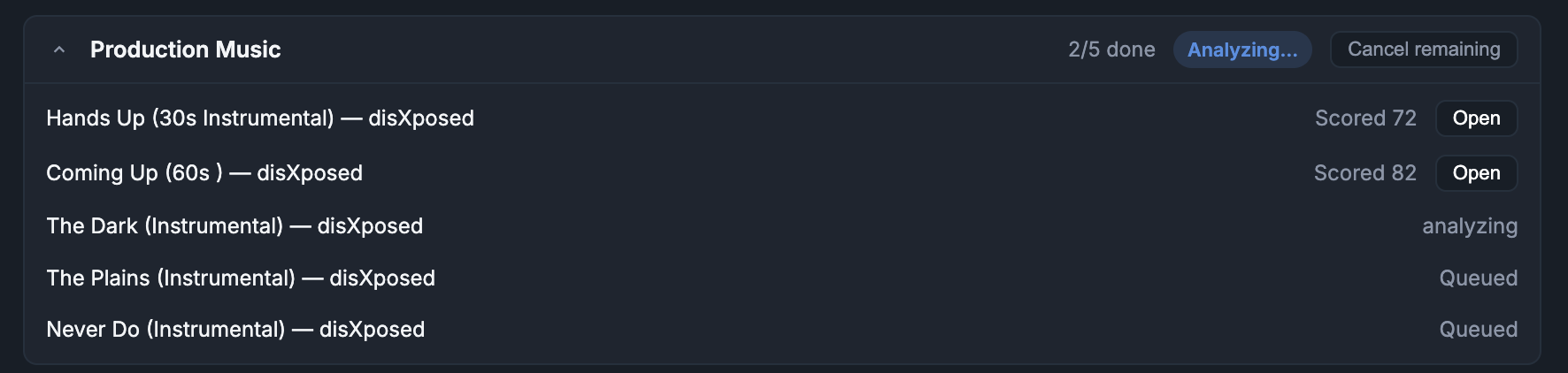
The Batches panel. It disappears once a batch finishes cleanly; its songs stay in the list below.
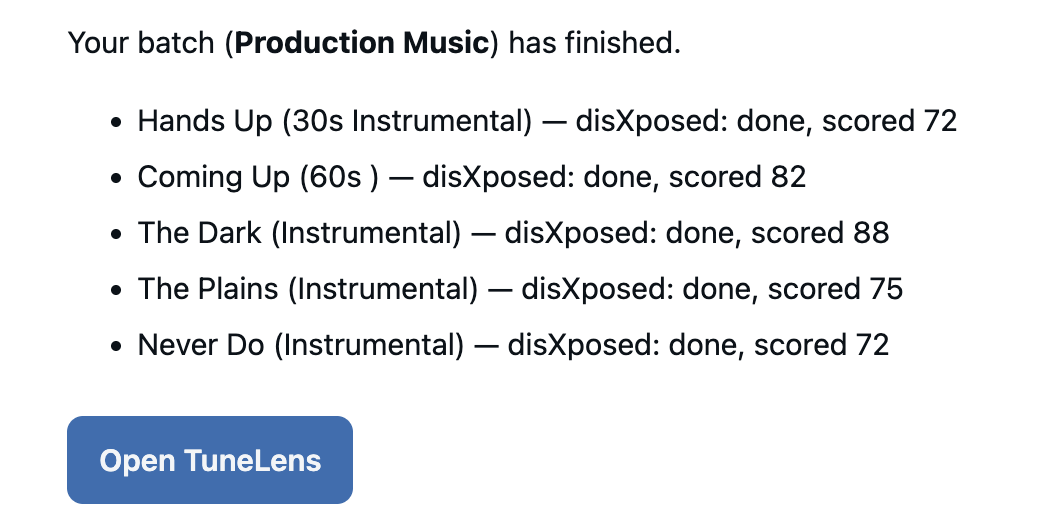
The email when the batch is done: one line per song, with its score.
When it's worth doing in one go
After a writing session
You came out of a week with eight rough voice-and-guitar demos and want to know which ones have a song in them. Use the Demo goal: it looks at the songwriting only, and costs 1 credit a song whichever button you press. More on that on the song demo feedback page.
Before a release
The tracks are mixed and you want a last check on each one before they go to mastering or distribution. Use the Release goal on In Depth and you get the full report per song: mix, mastering, production, songwriting and the action items ranked by what to fix first.
A backlog for sync
You've got finished tracks sitting on a drive and want to know which are ready to pitch. Use the Sync goal and every song comes back with its sync read. The sync readiness page covers what that looks at.
Whatever the goal, the reports are per song. Open each one from Songs and work through it like any other analysis: tick off action items, ask the chat about a section, upload the revised version.
What a batch costs
A batch costs exactly what the same songs would cost uploaded one at a time. There's no batch fee and no batch discount.
| Run | What you get | Per song |
|---|---|---|
| Light | Scores and the key fixes, about 30 seconds a song | 1 credit |
| In Depth | Every lens and the action items, about 2 minutes a song | 2 credits |
| Demo goal | Songwriting only, either button | 1 credit |
Batch upload isn't a Pro feature. It works on the free plan, and the only limit is your credits. The 6 credits a new account starts with cover six songs on Light or three on In Depth. A 20-credit pack ($9, never expires) covers ten songs on In Depth. Pro is 50 credits a month, which is one full 25-song batch on In Depth. See pricing for the rest.
Before a batch starts, TuneLens checks you have the credits for all of it. If you don't, it tells you what it would cost and what you have, and nothing is charged. Each song is charged when its turn comes, and a song whose analysis fails gets its credits back. If your balance runs out partway (say you spent credits elsewhere in the meantime), the remaining songs are skipped and the email says which.
After the batch
The songs are in Songs, grouped by title and artist like everything else you've uploaded. Each one opens in the workspace with its own report, the chat, and the rest of the workflow. When you've made changes to one, upload the revised version from that song's workspace. Each finished song also lands in CRM → My Songs, with its artist in My Artists.
If you're on Pro and want a collaborator to see them, tick the songs in the Songs list and click Share: one invite covers all of them, and the person you send it to can be on the free plan.
Frequently asked questions
Can I analyze multiple songs at once?
Yes. Upload multiple songs takes up to 25 files in one go. Each song is analyzed on its own and gets its own scored report, the same one you'd get uploading it alone. The songs run one after another in the background and you get an email when the batch is done.
Does it compare the songs with each other?
No. Each song is analyzed separately. TuneLens doesn't compare the songs in a batch, check how they sit together as an EP or album, or match loudness across them.
How long does a batch take?
Roughly 30 seconds a song on Light and 2 minutes a song on In Depth, so a 25-song In Depth batch is in the region of 50 minutes. Songs run one at a time, so it can take longer when the queue is busy. You don't need to keep the tab open.
Do I need Pro to upload multiple songs?
No. It works on the free plan, limited only by your credits. The 6 credits a new account starts with cover six songs on Light or three on In Depth.
Can I set a different goal for each song?
No, the goal (Sync, Release or Demo) and the Light or In Depth choice apply to the whole batch. Genre, mood and reference track are set per song. If some songs need a different goal, run them as a second batch.
Do batch reports include LUFS and dynamic range?
No. Those are measured in your browser when you upload a single song, and a batch is analyzed on the server, so a batch report doesn't have them and the mastering notes work without them. The free LUFS meter and dynamic range meter read them in the browser.
What if I upload the same song twice by accident?
If the same file was already analyzed with the same settings in the last 24 hours, TuneLens links the existing result instead of running it again, and doesn't charge for it.